No matching capabilities. Try a broader term or reset the filters.
AI & agents
Build and operate with AI
Create labels and workflows with copilots. Connect your agents through native MCP to extend your process and inspect operations.
AI-native architecture →What to explore
Structured documents, rendered previews, role-based tools and versioned changes. Configure an external agent for ongoing monitoring and proactive follow-up.
Design & data
Label layout
Arrange label objects in a browser and inspect the rendered result.
Label Designer →What to explore
Text, images, barcodes, object properties and label dimensions in one workspace.
Design & data
Variables & sample data
Bind values to a reusable label and inspect different sample records.
Preview data changes →What to explore
Saved sample sets make long names, different lots and alternate quantities easier to inspect.
Design & data
Barcodes & pallet labels
Connect the barcode’s content to the data used by the label.
Pallet-label scenario →What to explore
Review the symbology, encoded data, dimensions and numbering needs for your scanning environment.
Operator printing
Guided input forms
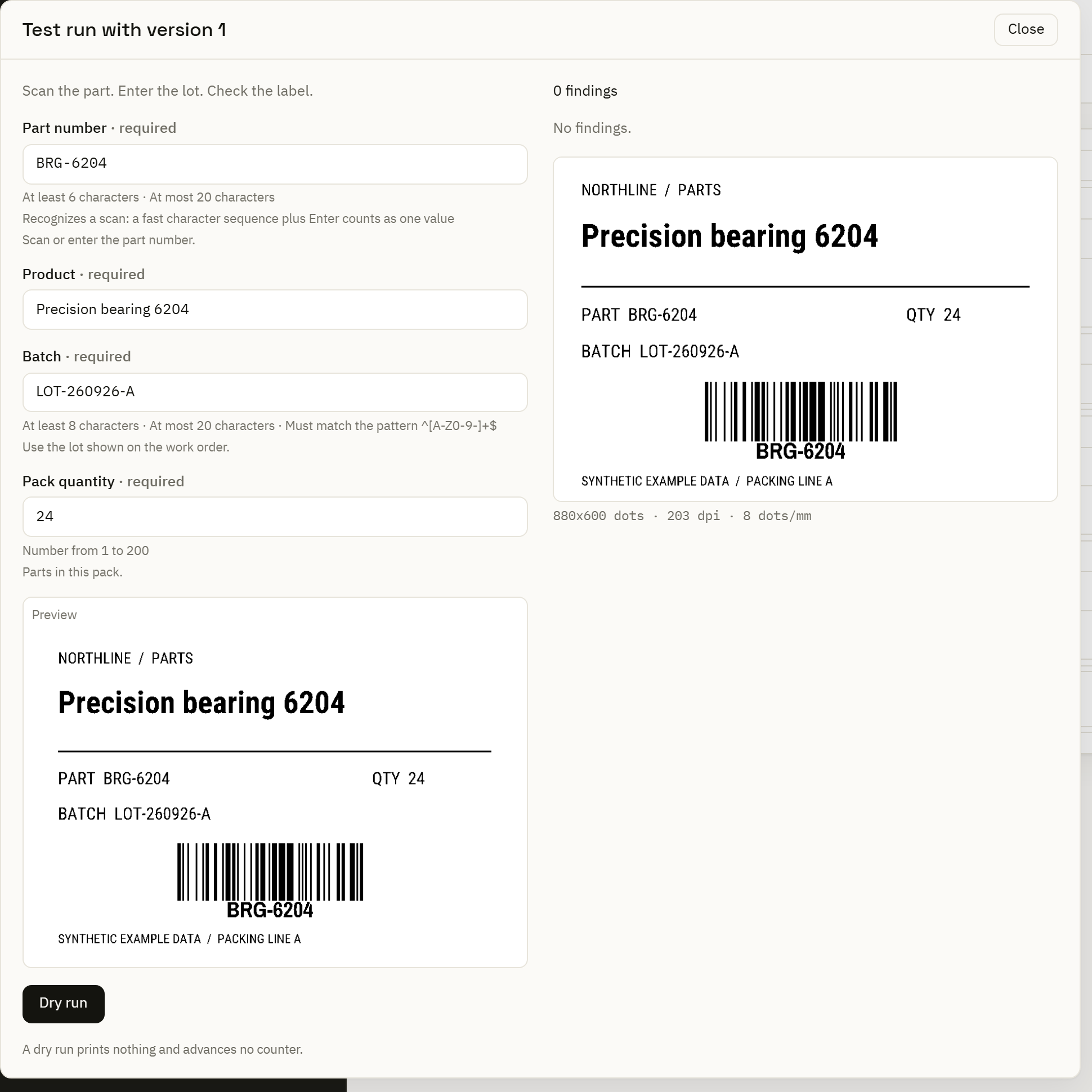
Ask for the values a station needs, with validation and a label preview.
Forms & Print Center →What to explore
Author the form, choose its action and try representative input at the station’s screen width.
Operator printing
Batch printing
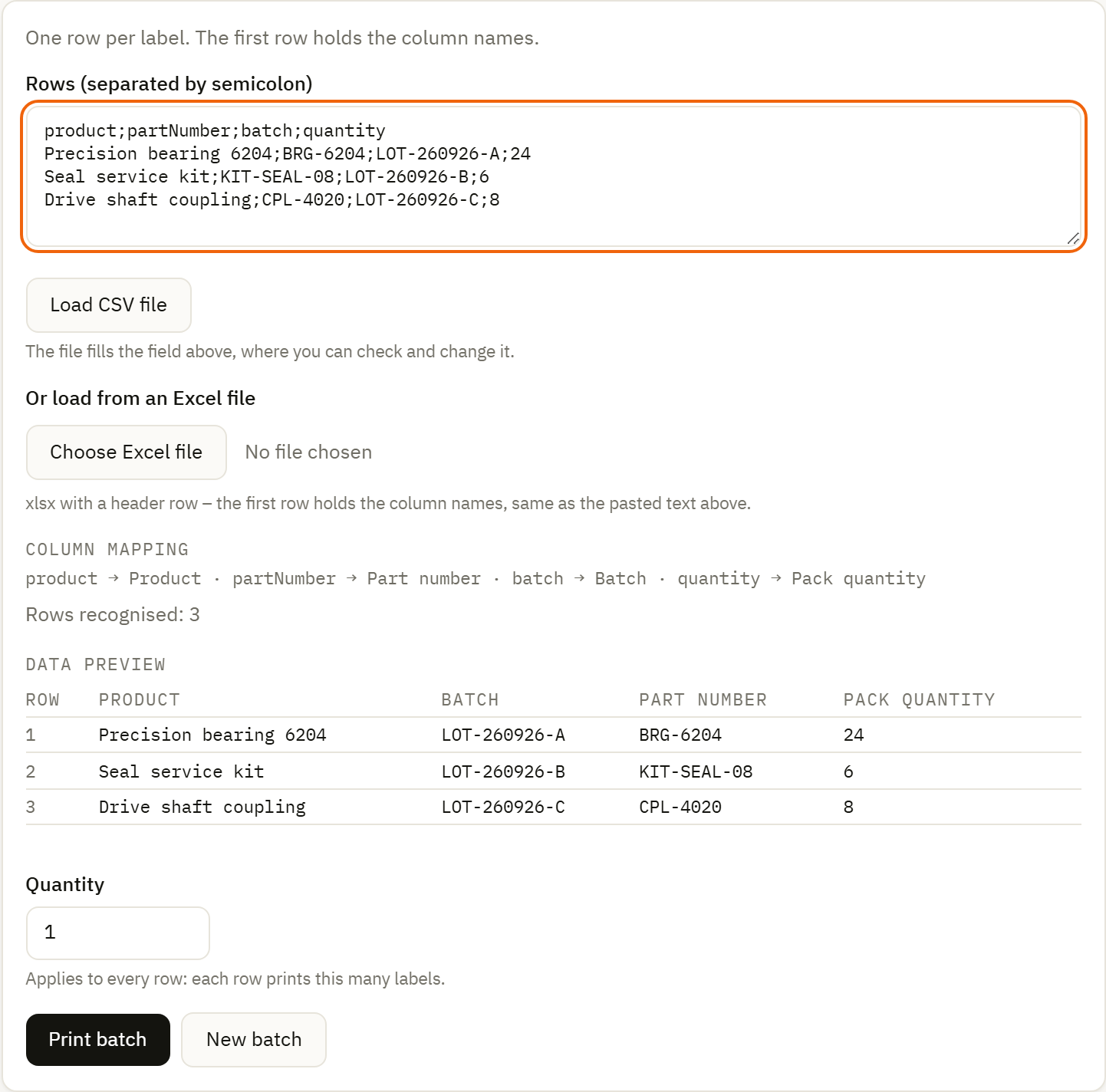
Prepare multiple label-data rows and quantities together.
Batch-printing guide →What to explore
Review the row values and quantities, then follow the resulting jobs.
Operator printing
Focused station view
Present a Center-hosted form in a focused kiosk view.
Warehouse scenario →What to explore
Keep the required inputs and rendered label visible. Plan access to the Center for this browser experience.
Business automation
Triggers & data sources
Start a workflow from a configured event and read the data it needs.
Automation →What to explore
Choose the trigger and connector for your environment, including their credentials and execution location.
Business automation
Mapping & decisions
Transform fields, route decisions and handle exceptions in a visible flow.
ERP workflow walkthrough →What to explore
Follow both valid input and rejected values, including branches that have already produced side effects.
Business automation
Execution details
Inspect an automation’s run and the steps that handled its data.
Follow a workflow run →What to explore
Use the run state, node details and notices to understand the path through a flow.
Local execution
Automation Services
Run assigned work close to printers and local data sources.
Local services →What to explore
Inspect connectivity, persistent queues and which deployed work can continue when the Center connection is interrupted.
Local execution
Version distribution
Assign a chosen version to a group and inspect its application state.
Multi-site deployment →What to explore
Separate the saved document, its desired deployment and what the group reports as applied.
Local execution
Printer paths
Choose a supported network or operating-system print path.
Printer compatibility →What to explore
Match printer language, driver or spooler, media and density to the path you intend to use.
Operations & review
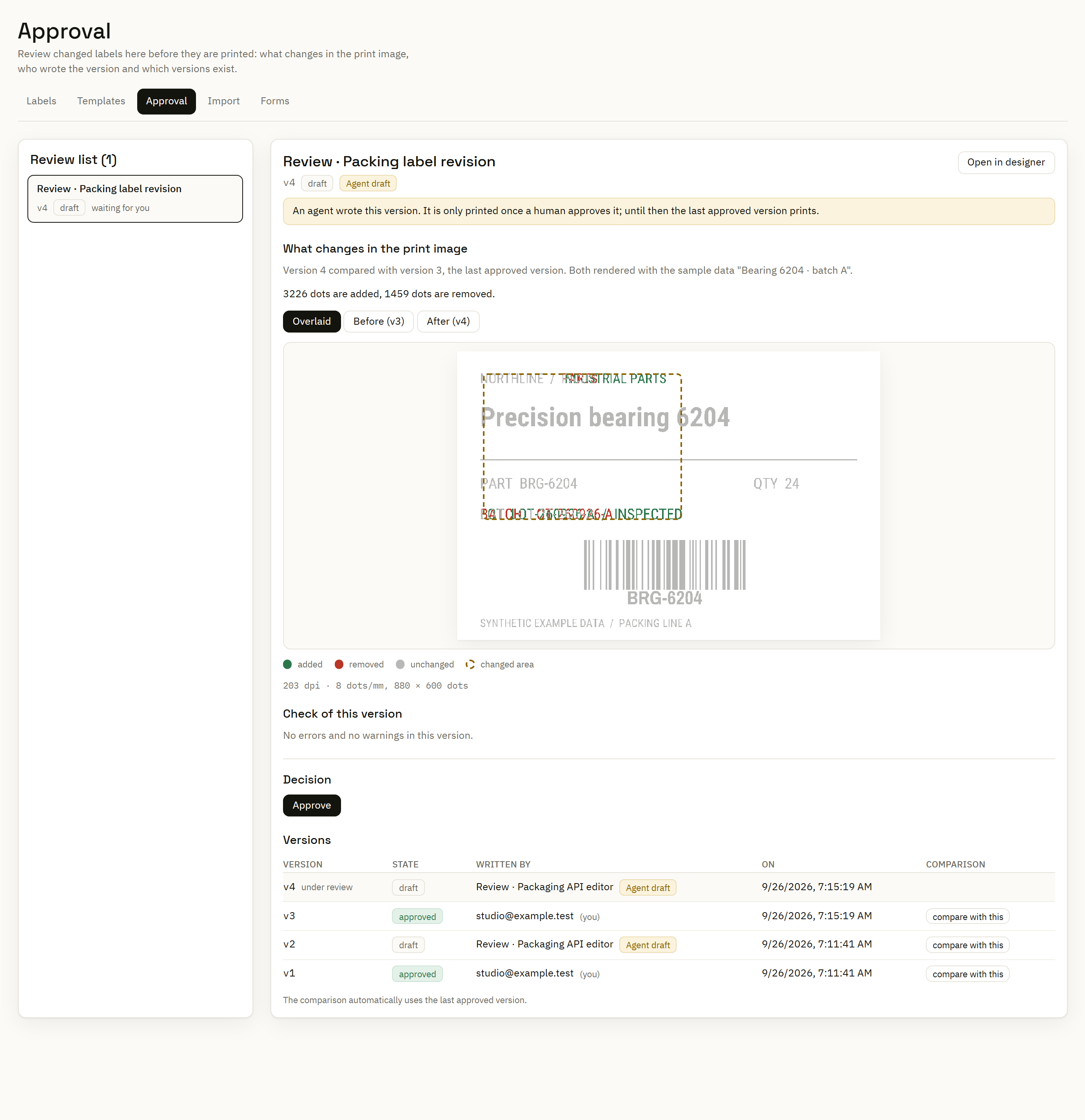
Review label changes
Compare a draft’s rendering with the approved version before accepting it.
Control Center →What to explore
Use representative sample data and inspect the additions and removals in the rendered comparison.
Operations & review
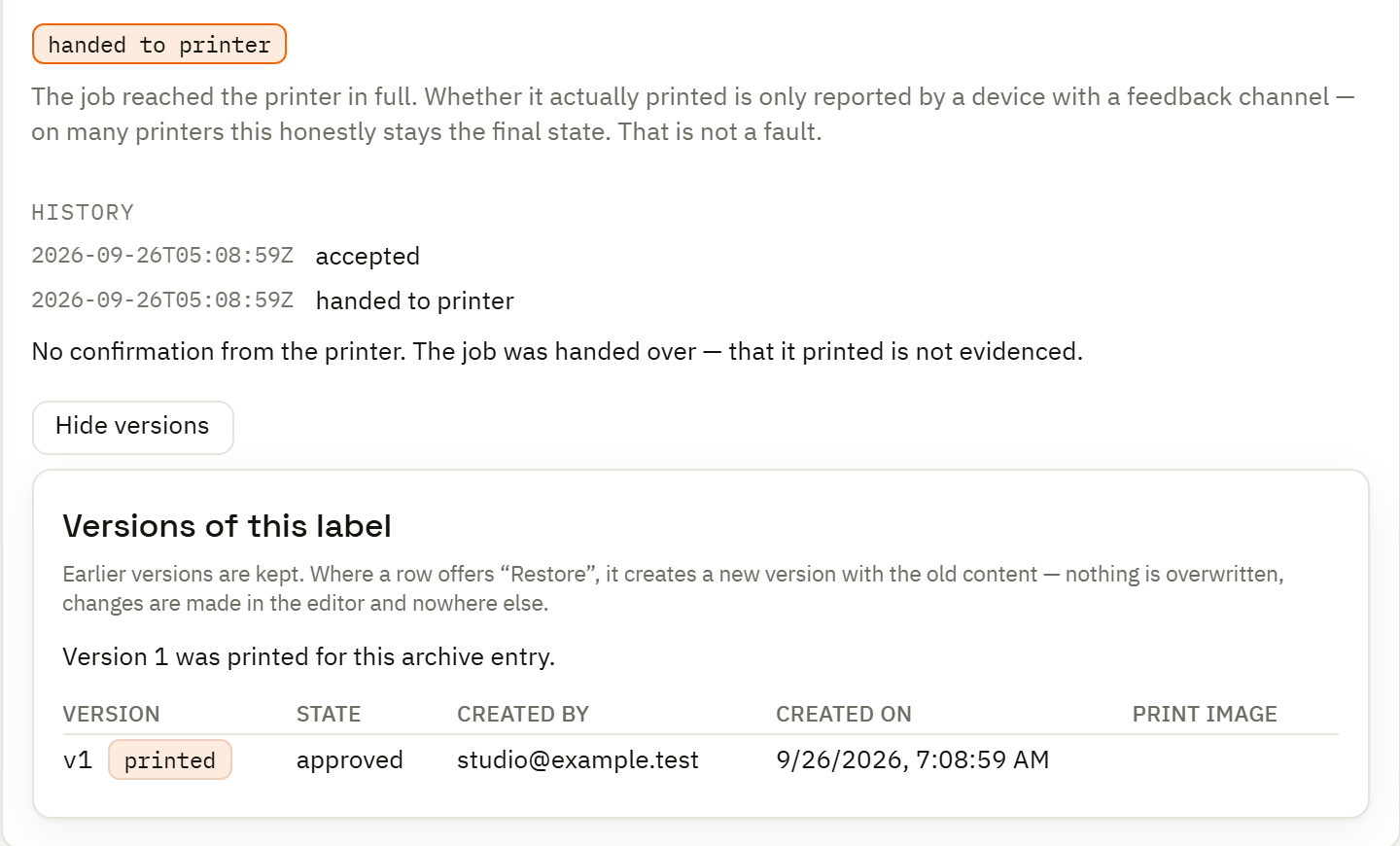
Print history
Return to the job, its context, rendered output and reported outcome.
Print management →What to explore
Distinguish sent, confirmed and uncertain outcomes before deciding whether to reprint.
Operations & review
Counters & numbering
Manage the numbers used by labels and automated processes.
Serialization →What to explore
Choose the allocation behavior that fits your workflow and follow assigned values separately from print outcomes.
Migration & integration
Import & diagnostics
Bring supported documents into a reviewable migration process.
Migration →What to explore
Inspect the imported result, warnings and unmapped features before approving a representative workflow.
Migration & integration
APIs & documents
Integrate through APIs and versioned label, flow and form documents.
Developers & API →What to explore
Use documented interfaces for business-system integration and controlled tool access.
Migration & integration
Reviewable assistance
Inspect deterministic suggestions and proposals from a configured model.
AI assistance →What to explore
Choose the assistance and model configuration you want. Printing itself does not require a model.